How to Change HEIC to JPG on Your iPhone
Last updated: July 2026
Need to change HEIC to JPG on iPhone? You can stop new shots from using HEIC, paste existing photos into the Files app so iOS writes JPG copies, or convert a larger set in Safari. Below are the paths that match real sharing problems—email, uploads, and non-Apple devices—without needing a computer.
Which Path Should You Use?
Future photos only
Switch Camera Formats to Most Compatible so new shots save as JPG automatically.
Keep JPG copies on the phone
Copy from Photos and paste into Files—iOS usually writes .jpg files you can reopen and share.
Send once, no file to keep
In the share sheet, open Options and choose Most Compatible so the outgoing copy is JPEG-friendly.
Many HEIC files at once
Use the browser converter in Safari when pasting one-by-one in Files is too slow.
Path 1: Turn Off HEIC so New Photos Save as JPG
iPhone saves photos as HEIC by default (iOS 11+). HEIC keeps quality with smaller files, but many PCs, email apps, and websites still prefer JPG.
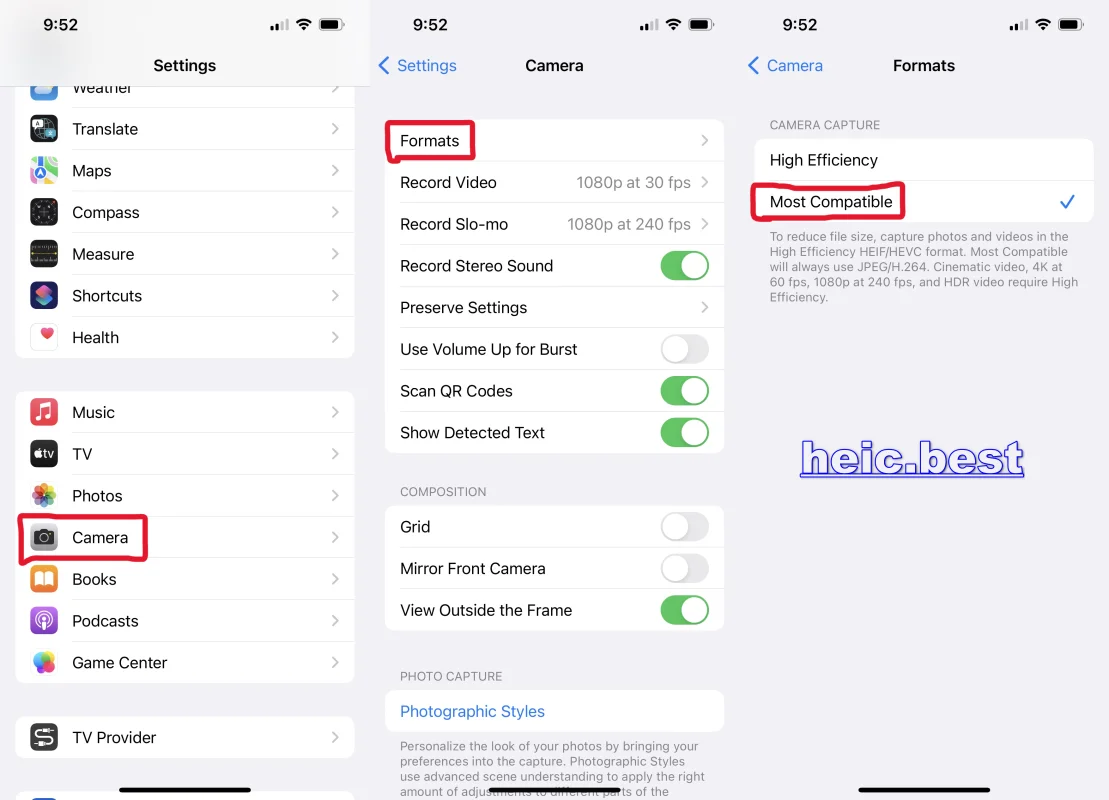
If you want every new shot to be JPG going forward, switch Camera Formats to Most Compatible. This does not change photos you already took—those stay HEIC until you export or convert them.
How to turn off HEIC on iPhone
- 1 Open Settings
- 2 Tap Camera
- 3 Tap Formats
- 4 Choose Most Compatible (new photos save as JPG/JPEG instead of High Efficiency / HEIC)
High Efficiency keeps HEIC for smaller files. Most Compatible uses JPG and uses more storage—pick based on whether sharing compatibility matters more than space.
Paths for Photos Already on Your iPhone
Existing HEIC stays in your library until you make a JPG copy or share with a compatible format. Use Files when you want a real .jpg on the device; use share Options when you only need the recipient to get JPEG; use Safari when the set is large.
Path 2: Save HEIC as JPG with Photos + Files
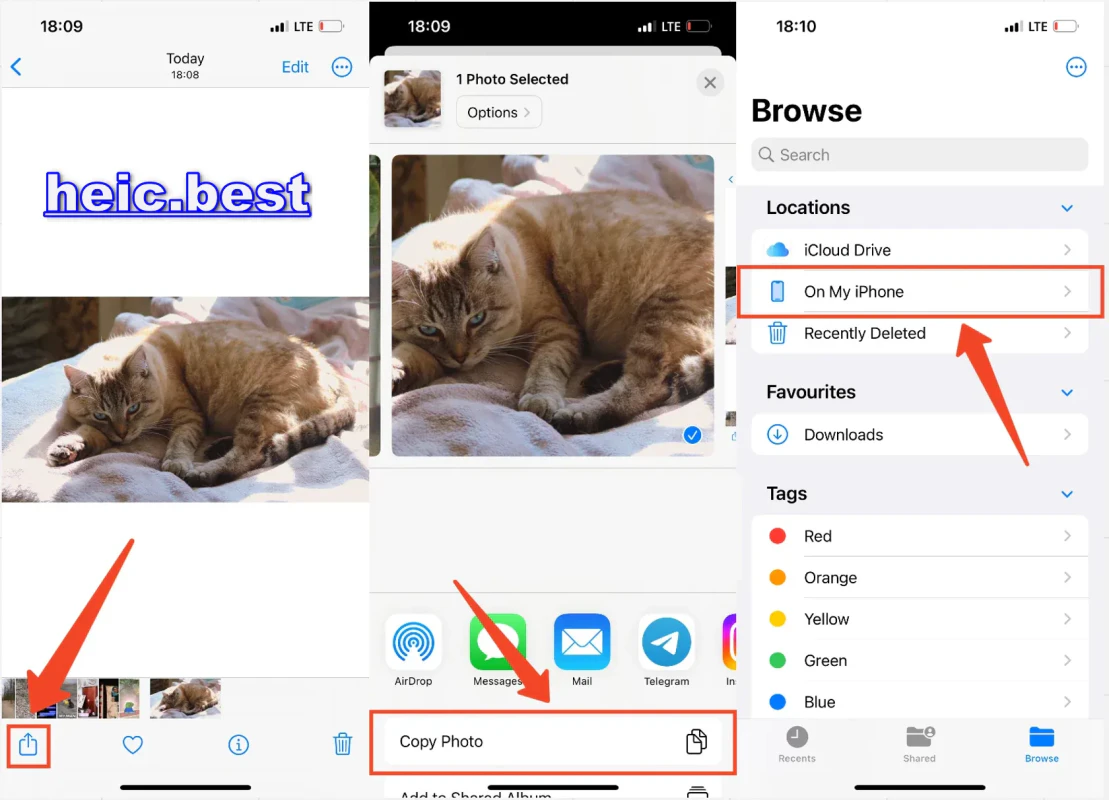
Fast built-in route when you need actual JPG files on the iPhone. Copying from Photos and pasting into Files often makes iOS write JPEG copies; the originals in Photos stay HEIC.
- 1 In Photos, tap Select and mark one or more HEIC images
- 2 Tap Share, then Copy Photos (or Copy Photo for a single image)
- 3 Open the Files app and go to On My iPhone (or another folder you prefer)
- 4 Optional: create a folder so converted copies stay organized
- 5 Long-press empty space in the folder and tap Paste
- 6 Check the new items—they typically appear as .jpg. Open one and use Share if you need to send or save elsewhere
Quality follows the system default (no slider). Prefer On My iPhone if you do not want the copies to use iCloud Drive storage.
Path 2b: Share as JPEG without saving a file
When you only need to send or upload once, Apple’s share Options can favor a compatible format so the outbound copy is JPEG. This does not add a separate JPG into Photos by itself.
- 1 Open the photo in Photos and tap Share
- 2 Tap Options at the top of the share sheet
- 3 Choose Most Compatible (wording can vary by iOS version)
- 4 Pick Mail, Messages, or another destination and finish sharing
Automatic may still send HEIC to apps that accept it. Most Compatible is the clearer choice when the other side expects JPG.
Path 3: Convert HEIC to JPG in Safari (batch-friendly)
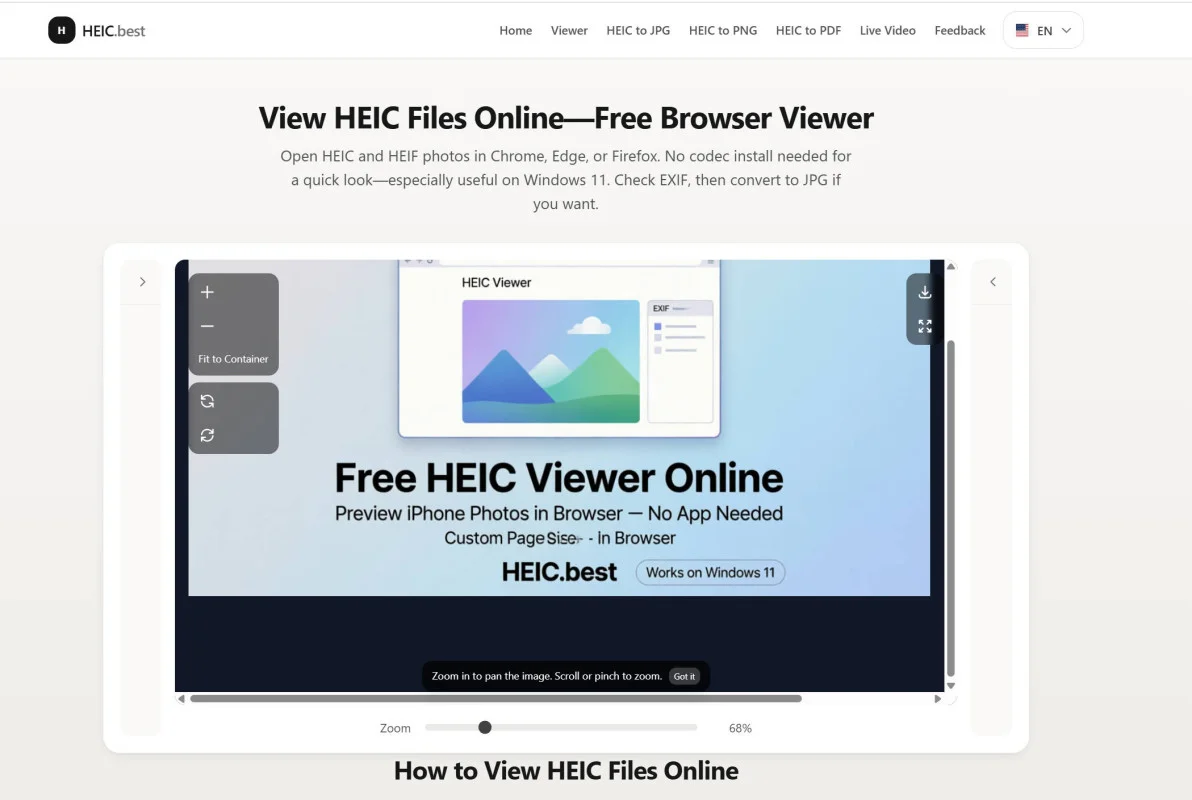
Open HEIC.Best in Safari on your iPhone, select HEIC files, convert, and download JPG copies. Useful when Files paste is tedious for a large album, or you want quality control in the browser. Conversion runs on your device.
After iPhone: Viewing or Converting on a Computer
If you transfer HEIC to a Windows PC over USB, files often stay HEIC—Windows may not open them until you convert or install codecs. Settings → Photos → Transfer to Mac or PC → Automatic can deliver more compatible formats when connecting to a computer. iCloud Photos for Windows may also download as JPG depending on settings.
On Mac, HEIC usually opens in Preview; export to JPEG there if you need JPG. For a full PC walkthrough after AirDrop or cable transfer, use our Windows conversion guide or convert in the browser on any computer.
Frequently Asked Questions
How do I change HEIC to JPG on iPhone?
For new photos: Settings → Camera → Formats → Most Compatible. To keep JPG copies: copy from Photos and paste into Files. To send once: Share → Options → Most Compatible. For many files: convert in Safari with HEIC.Best.
Does copying photos into the Files app convert HEIC to JPG?
Usually yes. Pasting photo data into Files often creates .jpg copies while the originals remain HEIC in Photos. Confirm the extension after paste; if you still see HEIC, use Safari conversion or share with Most Compatible instead.
How do I turn off HEIC on iPhone?
Go to Settings → Camera → Formats and choose Most Compatible. New photos save as JPG (JPEG) instead of HEIC. Existing HEIC photos are unchanged until you make JPG copies or share them as JPEG.
How do I convert HEIC to JPG without a computer?
Yes—on the iPhone itself. Paste into Files for JPG copies, use share Options for a one-off send, or open a browser HEIC to JPG converter in Safari for multiple files.
Does changing to Most Compatible affect old photos?
No. Camera Formats only affects new captures. Older HEIC files stay HEIC until you paste JPG copies into Files, share as JPEG, or convert them.
Will JPG look worse than HEIC on iPhone?
JPG uses compression, but for sharing and screens the difference is usually small. HEIC often keeps files smaller on the phone; JPG is chosen mainly for compatibility. Files paste uses a system default quality; a browser converter lets you pick a quality level.
Are photos converted when I transfer from iPhone to PC?
With Transfer to Mac or PC set to Automatic, the phone is more likely to hand over compatible formats. A direct USB copy can still keep HEIC, so you may still need to convert on the PC or beforehand on iPhone. iCloud Photos on Windows may download as JPG depending on settings.
Summary
To change HEIC to JPG on iPhone: turn off HEIC for new shots, paste from Photos into Files when you need JPG files on the device, use share Options for a one-time send, or convert in Safari for larger batches. Match the path to whether you need future defaults, kept copies, or speed.
Need JPG Copies from HEIC on Your iPhone?
Convert HEIC to JPG in Safari—free, no signup, and processing stays on your device. Handy when Files paste is too slow for a large album.
Convert HEIC to JPG Now
No comments yet